 WhatsApp
 Facebook
 YouTube
How to back up and restore your ATS25 firmware from the browser
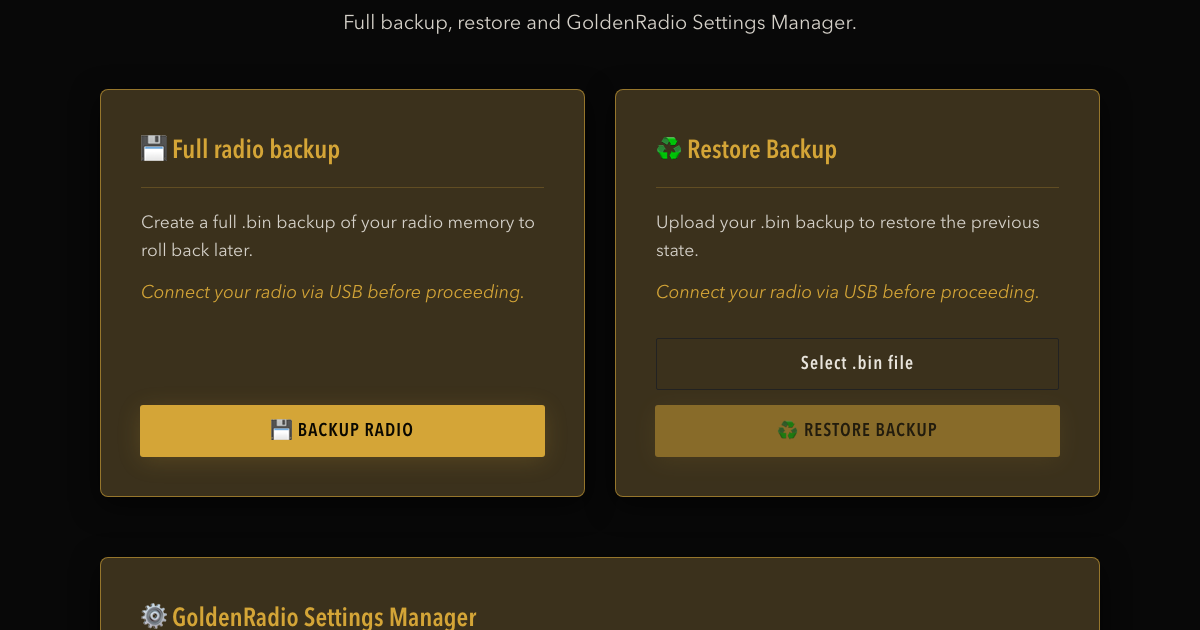
Before you install GOLDENRADIO for the first time, it is a good idea to keep a full copy of your ATS25's memory. The web installer does it automatically during the first installation, or you can make one yourself at any time. It is not mandatory, but reading the memory does not change anything on the radio, and this copy is the only way to put the radio back exactly as it was if you later change your mind.
This guide explains how backup and restore work, what you need and what a restore brings back.
Why a backup matters
Every time the web installer installs GOLDENRADIO — first installation or update — it first erases the whole flash memory. That memory holds everything the radio knows:
- the original firmware installed by the seller;
- your settings and memories;
- any data a third-party firmware stores on the radio, including its activation data.
A full backup copies that entire memory into a single .bin file on your computer. With that file you can go back to the saved state of the radio later.
A backup is not mandatory, but it is worth having before the first installation: once the memory has been erased, the original content can no longer be recovered from the radio.
What you need
- A computer (Windows, Mac or Linux) with Chrome or Edge. The installer uses Web Serial, which these browsers support; it does not work on phones.
- A USB cable that carries data. Many cables supplied with power banks only charge.
- The USB driver for the chip in your radio, if your computer shows no serial port: CP210x or CH340/CH341.
- A few minutes. The duration depends on the memory size of your radio; the page shows a live estimate.
The first time you use the installer on the download page, it asks for your email address and sends you a 6-digit code to unlock it.
Close any other program that may be using the radio's serial port (serial monitors, other flashing tools) before you start.
The easy way: back up during the first installation
- Connect the radio to the computer with the USB cable and switch it on.
- Open the web installer and choose First installation.
- Click Connect the radio and start.
- Choose where to save the copy of the original firmware. The browser suggests a name such as
ATS25_originale_2026-09-28.bin. - Select your radio's serial port in the list shown by the browser.
The installer first reads the whole memory and saves the file on your computer, then installs GOLDENRADIO on the same connection. If it cannot read the memory, it asks whether you want to install anyway without saving the original firmware. You can go ahead: the backup is recommended, not mandatory. If you prefer to keep a way back, answer no and make a manual backup first, as described below.
Make a manual backup at any time
You can also make a full backup yourself from the Utility page, for example before trying a different firmware or to keep a copy of your GOLDENRADIO setup. Backup and restore on this page do not require the email code.
- Connect the radio via USB and open the Utility page.
- In the full backup card, click BACKUP RADIO.
- Choose where to save the file. The browser suggests a name such as
ATS25_backup_2026-09-28.bin. - Select your radio's serial port.
- Wait until the progress reaches 100%. The page shows the detected chip, the flash size, the progress and the time remaining.
Do not disconnect the radio or close the page while the backup is running. If the connection drops briefly, the installer retries the affected block automatically. At the end the radio is restarted.
In both cases the installer reads the whole memory, whatever its size (4 MB, 8 MB or more): the size is read from the chip itself. The file stays on your computer and is not uploaded anywhere.
Keep the file safe
- Keep at least two copies, for example on the computer and on a USB stick or cloud storage.
- Rename it so you know which radio it belongs to, for example
ATS25X2_original_backup.bin, especially if you own more than one radio. - Treat it as private. It is a complete image of the radio's memory, including any settings and activation data stored on it, so do not share it publicly.
Restore a backup
- Connect the radio via USB and open the Utility page.
- In the restore card, click Select .bin file and choose your backup.
- Click RESTORE BACKUP and select the radio's serial port.
- Wait until the write is complete. The radio restarts at the end.
The installer writes the file back to the beginning of the memory. It first tries a fast connection and, if that is unstable, automatically retries at a safer speed.
The only check the installer makes is that the file is not larger than the radio's memory. It cannot tell whether the file is complete or whether it came from this radio: a truncated file, or a backup from another unit, would still be written. Always restore the complete, unmodified file made on the same radio.
What a restore brings back
When you restore a complete backup made on the same radio, the radio gets back the memory image that was saved: firmware, settings and memories, as they were at the time of the backup. This also works with third-party firmware such as HARDUINO / H-RADIO.
A few more points worth knowing:
- GOLDENRADIO and other firmware are separate products. A license key for another firmware does not activate GOLDENRADIO, and a GOLDENRADIO key does not activate other firmware.
- The GOLDENRADIO license belongs to the radio, not to the file. The Program ID is tied to the radio's chip, so it stays the same when you change firmware. If you restore an old image and then install GOLDENRADIO again, you may need to enter your activation key again. If you have lost it, you can recover your license by email.
- You can try GOLDENRADIO first. All features are available during the free trial; an activation reminder appears from time to time until you activate a license. Try it on your own radio, and if it is not for you, restore your backup.
Updating GOLDENRADIO keeps your settings
You do not need a full backup to update GOLDENRADIO to a newer version. On the web installer, choose Update GOLDENRADIO and click INSTALL FIRMWARE. The installer saves your radio settings, memories, Wi-Fi networks and activation key, installs the new version and then puts them back.
This automatic copy needs GOLDENRADIO 2.2.3 or later already on the radio. With versions older than 2.2.8, open the SETTINGS page on the radio before you start. If the installer cannot read the settings, it asks whether to continue: answering yes installs the update without them, and your memories and settings are lost. If you are not sure, answer no and make a manual backup first.
The EiBi database is not part of this automatic copy: reload it from the EiBi page after the update. If the settings were saved but the update or the settings restore then fails, the installer saves a .grbackup safety file on your computer, which you can load later with the GoldenRadio Settings Manager.
During the update the radio's screen turns black for a while. That is normal: do not switch the radio off or unplug it. If the radio asks you to choose a language after the update, choose one so the settings can be restored.
If something goes wrong
- The serial port does not appear: check the USB driver and the cable, then restart the computer if needed.
- Connection error: use a data cable, close other programs that use the serial port and try again.
- A manual backup stopped halfway: nothing has been written to the radio. Start the backup again. During a first installation, if the installer cannot read the memory it asks whether to install anyway: answer no if you want to keep the original firmware.
- A restore or installation was interrupted: the radio may not start normally until a firmware is written again. Repeat the restore, or the installation, from the web installer.
If you are stuck, write to support@golden-radio.com with the model of your radio and a copy of the messages shown in the installer log.
Full backup and settings manager are different tools
The Utility page also contains the GoldenRadio Settings Manager, which saves .grbackup files. You choose what to save among settings, memories, Wi-Fi networks, the EiBi database and the activation key. It only works with GOLDENRADIO (version 2.2.3 or later) already installed on the radio.
It is useful to save and restore your GOLDENRADIO data without touching the firmware, but it is not a firmware backup. To keep a way back to the original radio, you need the full .bin backup described above.