GoldenWEB: your GOLDENRADIO on the PC screen, with map, EiBi and decoders
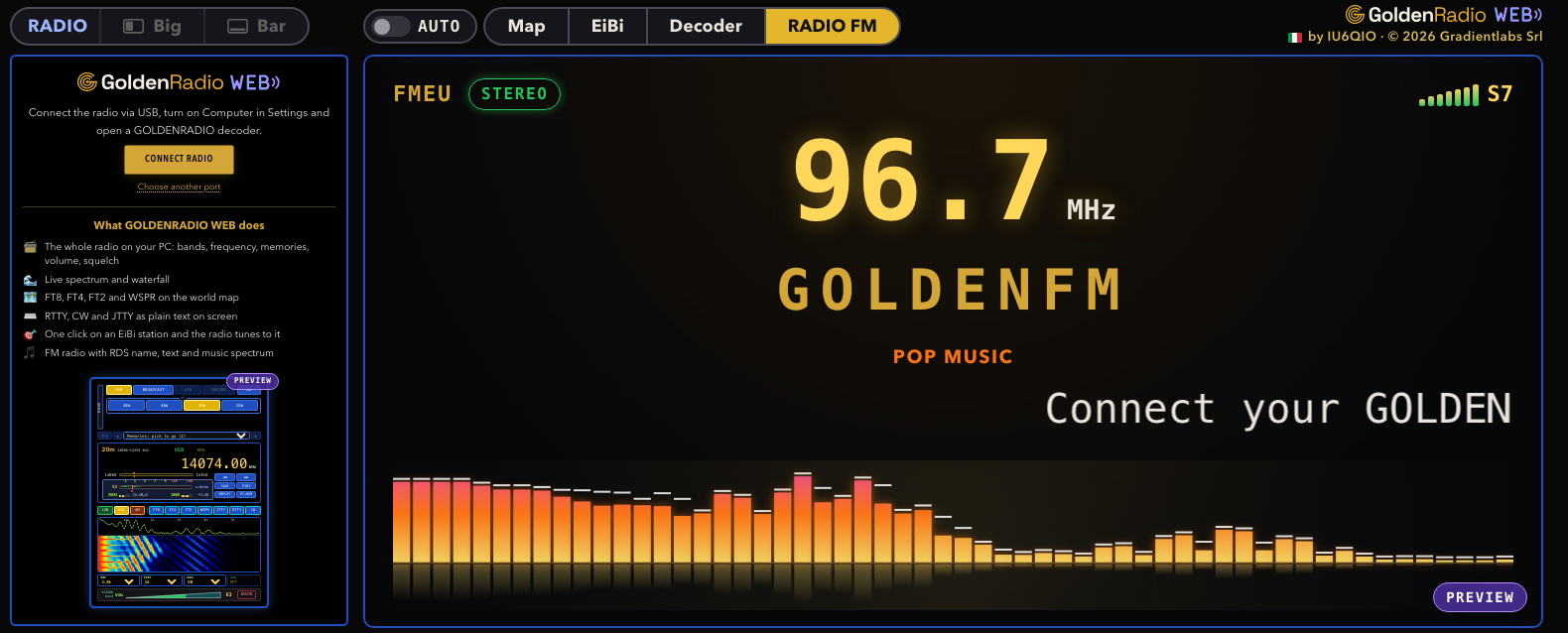
GoldenWEB is the new page of golden-radio.com that turns your computer into a full GOLDENRADIO console. Connect the radio with its USB cable, open the page in Chrome or Edge, and you get the whole radio on the PC screen: bands, frequency, memories, volume and squelch, with the live spectrum, the world map of the stations you receive, the EiBi shortwave stations on air and the text of the decoders, side by side.
Nothing to install: GoldenWEB runs in the browser and talks to the radio over USB.
What you need
- A GOLDENRADIO radio with firmware 2.3.1, installed from the web installer. Some features need 2.3.1; with older firmware they stay off.
- Chrome or Edge on a computer (the page uses Web Serial, which these browsers support).
- The USB cable of the radio.
On the radio, turn on Computer in the settings. Then open GoldenWEB and press CONNECT RADIO.
The radio on screen
On the left there is GOLDENRADIO WEB, the radio drawn on the screen. It works like the real one, and everything you do on one shows on the other:
- Bands grouped as on the radio: HAM, BROADCAST, AIR and CB, with the 40 CB channels.
- Frequency: turn the mouse wheel over a digit to change that digit, or click the frequency and type it in kHz or MHz.
- Mode LSB, USB and AM, and the tuning digit in SSB.
- S-meter with RSSI and SNR, and the squelch you drag on the bar.
- Live spectrum and waterfall of the audio, in every band and in the decoders.
- Memories: pick, save, rename, delete and move them, and copy all of them to the PC and back.
- Volume, MUTE, bandwidth, step, AGC and LNA.
If you prefer more room for the rest, the radio becomes a bar at the bottom of the screen with the controls of the band you are in: seek and RDS name in FM, the EiBi station in broadcast AM, the big channel number in CB, presets and cycle in the decoders.
The view on the right follows the radio
On the right GoldenWEB shows what is useful for what you are doing. With AUTO on, the view changes by itself when you change band or mode; you can also pick it yourself:
- Map: every FT8, FT4, FT2 and WSPR station you receive appears on the world map and in the list, with country and distance.
- EiBi: the shortwave stations on air right now in the band you are in. Click a station and the radio tunes to it.
- RTTY, CW and JTTY: the decoded text arrives letter by letter on a green screen, like the terminals of the seventies, with the spectrum and the M and S marks lighting with the signal. You can copy it or save it to a file.
- RADIO FM: the FM station with its RDS name, the scrolling radio text and a spectrum of the music.
A frequency worth keeping
Found an interesting signal while you are in a decoder? With GOLDENRADIO 2.3.1 SAVE also works from the decoder pages: the frequency goes to the first free memory without leaving the decoder.
Without a radio
If you do not have a GOLDENRADIO yet, you can still open GoldenWEB and look around: the map, the EiBi list and previews of the decoders and of the FM screen show what the radio does once it is connected.
If you try GoldenWEB, tell us how it went at support@golden-radio.com: your reports help us make it better.