Control your GOLDENRADIO from your phone, with the radio's audio
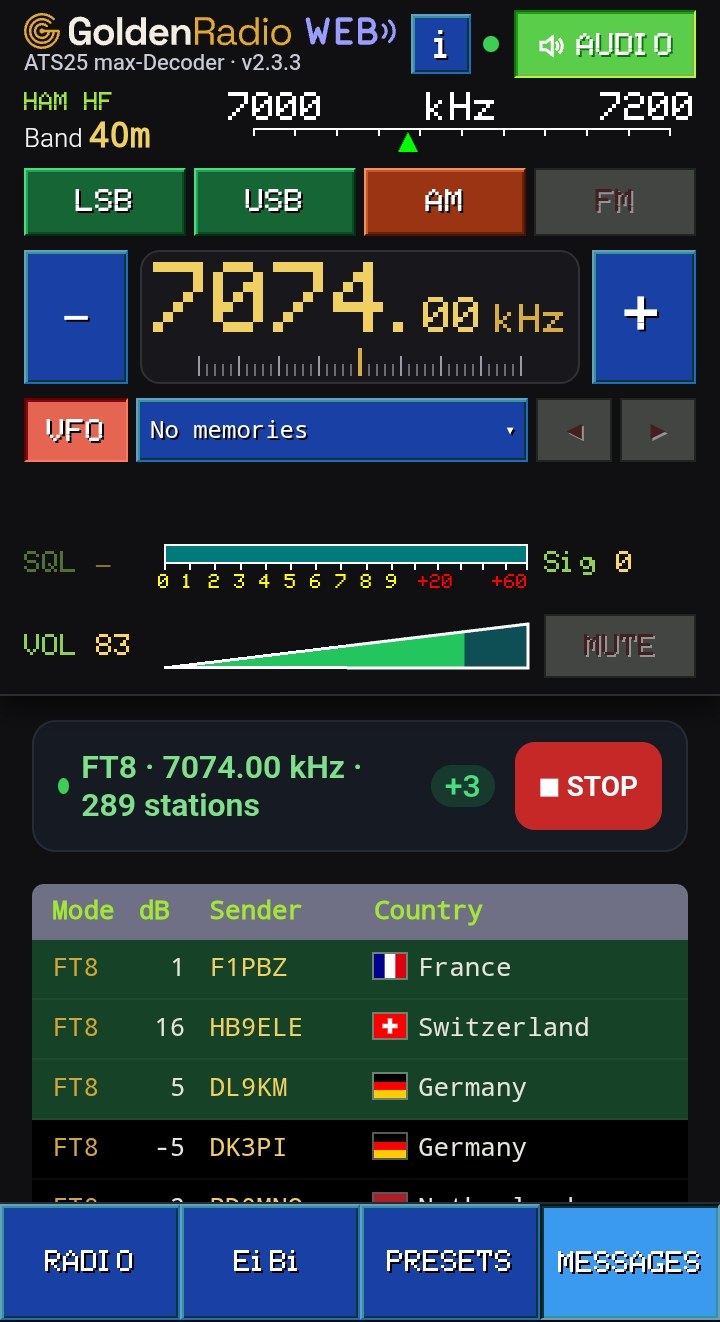
Your phone can now be a remote control for your GOLDENRADIO. Sit on the sofa or walk around the house: on the phone you have the radio with its bands, frequency, memories and decoders, and you hear what the radio receives, in stereo when you listen to FM. Nothing to install on the phone: it is a page of golden-radio.com.
The phone talks to GoldenWEB, the page that runs the radio on your PC, so the PC stays connected to the radio over USB. The remote works on your home Wi-Fi.
What you need
- A GOLDENRADIO radio with firmware 2.3.3, connected to the PC with its USB cable and with Computer turned on in the radio settings.
- GoldenWEB open on the PC, in Chrome or Edge, with the radio connected.
- For the audio: the radio's audio output connected to an audio input of the PC (for example a USB audio interface). GoldenWEB sends what comes in to the phone.
- A phone on the same Wi-Fi as the PC.
Pair the phone
- In GoldenWEB press REMOTE. A QR code appears.
- Frame the code with the phone's camera and open the link. The radio opens on the phone.
- That's it. Next time the phone reconnects by itself, without the QR, as long as GoldenWEB is open on the PC.
You can also open golden-radio.com/remote on the phone and type the code shown on the PC. A code works for one phone only and expires after a few minutes.
To open the remote like an app, add the page to your home screen: on Android use the Chrome menu (⋮) and choose Install or Add to Home screen; on iPhone use Share and Add to Home Screen. The INFO page (the i next to the logo) shows how on your phone.
RADIO: the radio in your hand
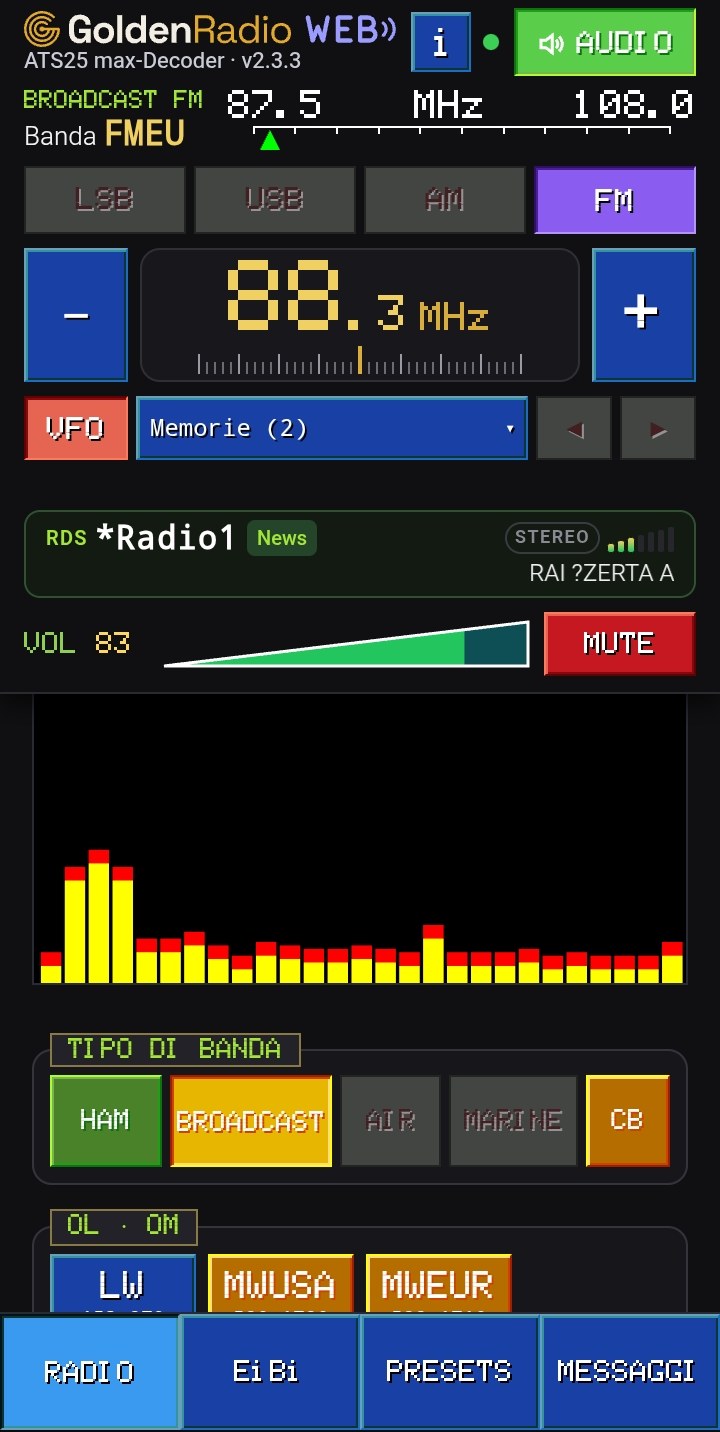
The RADIO tab looks like the radio's own screen, with its buttons and its display font.
- Frequency: tap it to type a frequency, or drag it left and right to tune. Hold + and − to move fast.
- Band types HAM, BROADCAST, AIR, MARINE and CB, with the bands of each type in the radio's colours. AIR, MARINE and CB go straight to their band.
- Band bar: tap or drag it to jump to a point of the band.
- Mode, BW, STEP, AGC and LNA, where the radio allows them.
- S-meter like the radio's, with the squelch you set by touching or dragging it, VOL from 0 to 100 and MUTE.
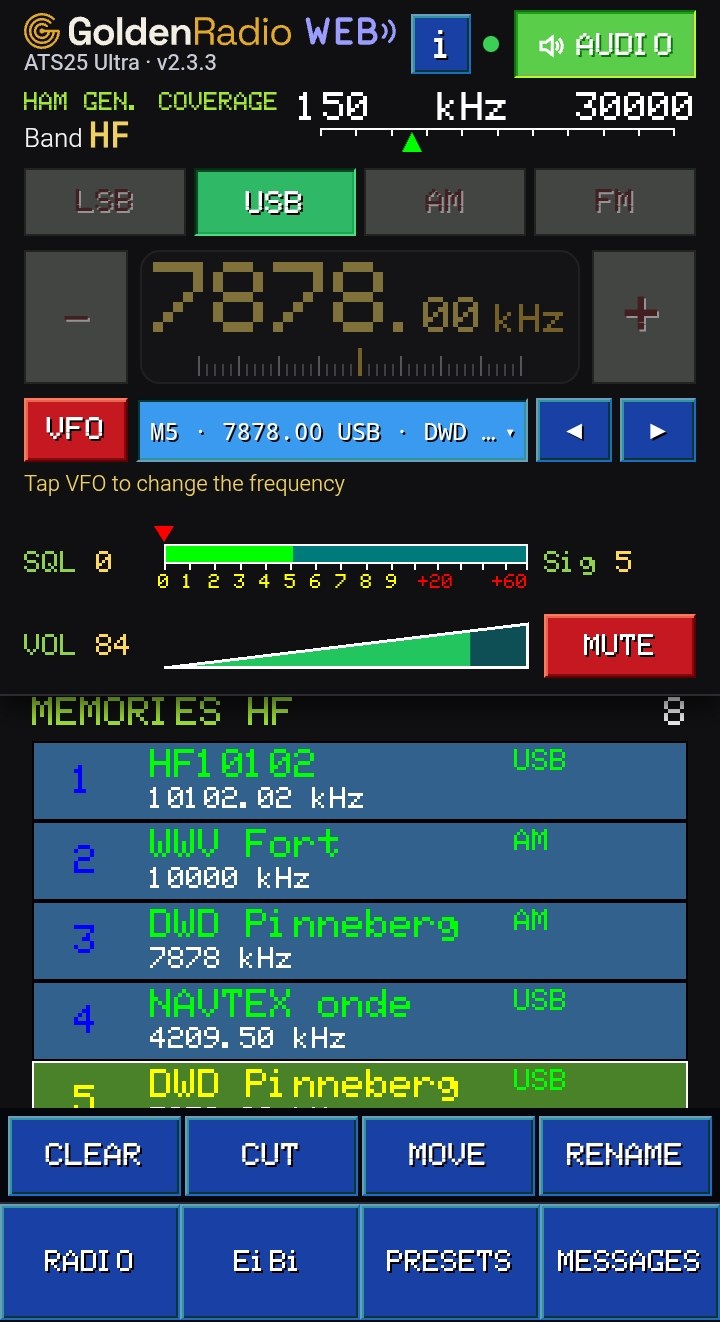
- VFO, SAVE and the memories: the box next to VFO opens the memory list, like the radio's memory page, where you can also clear, cut, move and rename a memory.
- FM: RDS name, programme type and radio text, the STEREO indicator and the signal bars.
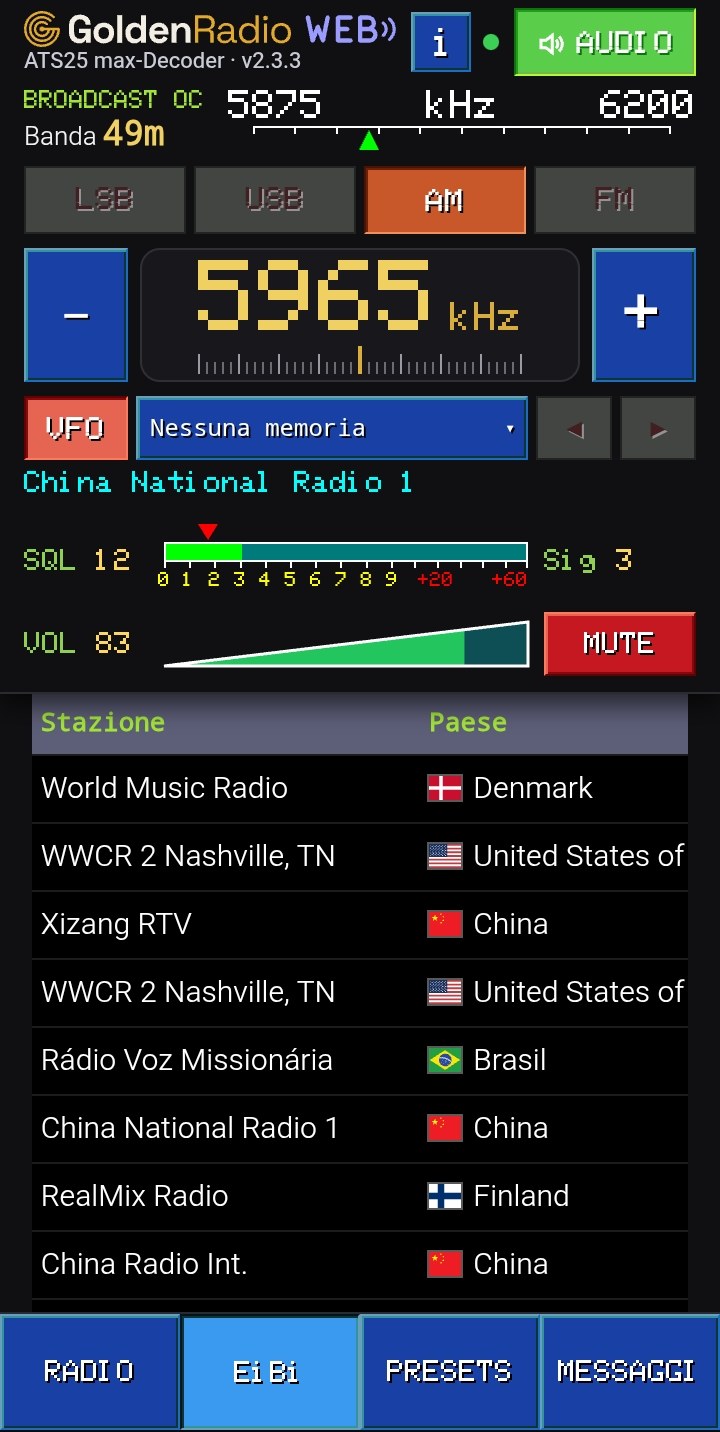
- Shortwave: when you are tuned to a station of the EiBi schedule, its name appears in light blue under VFO, as on the radio.
- SPECTRUM: the audio spectrum and waterfall; in FM, yellow bars like the radio.
- DIGI: open FT8, FT4, FT2, WSPR, JTTY, RTTY, CW and NAVTEX from the phone.
EiBi, PRESETS and MESSAGES
- EiBi: the shortwave broadcasters on the air now, in every band, with country, language and distance. Tap a station and the radio tunes to it.
- PRESETS: the same lists of useful frequencies as GoldenWEB, by category. Tap one and the radio goes there, opening the right decoder when needed.
- MESSAGES: with FT8, FT4 or WSPR, the same table as GoldenWEB, newest on top, with the messages of the last cycle highlighted. With RTTY, CW, JTTY and NAVTEX, the decoded text as it arrives.
Listening
The radio's audio goes straight from the PC to the phone over your home network. In FM it is stereo. You can turn the phone's screen off and keep listening. On Android the lock screen shows a player with the frequency and the station name, like a music app. MUTE silences the radio, its loudspeaker too.
Privacy
The audio does not leave your home: it goes directly from the PC to the phone. The commands pass through the golden-radio.com server only to reach the PC; they are not stored.
The remote follows the language of GoldenWEB on the PC. Open GoldenWEB, connect the radio and press REMOTE to try it.