WEFAX on the PC: receive weather charts with GoldenWEB
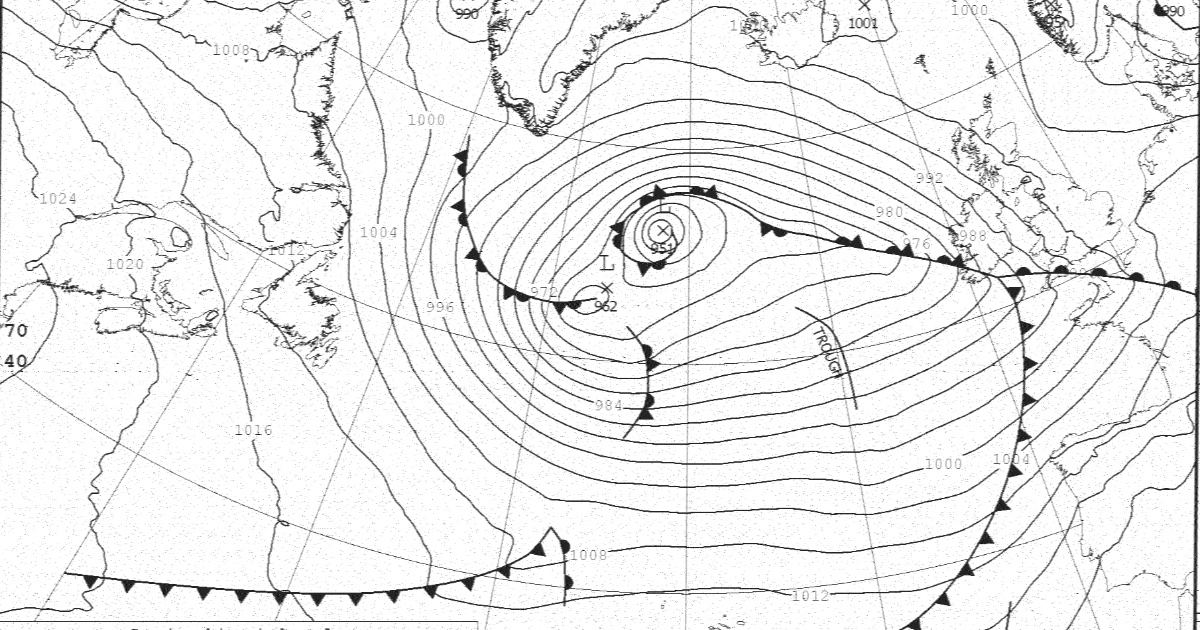
Weather services still send their charts by radio, as they have done for decades: isobars, fronts, sea state, satellite pictures. Ships at sea receive them on shortwave. Now GoldenWEB receives them too, on your PC, from the audio of your GOLDENRADIO, and shows them large, in full screen, ready to save.
What WEFAX is
WEFAX (radiofax) sends a picture one line at a time. The radio receives it in USB and the audio tone carries the shade of each point: 1500 Hz is black, 2300 Hz is white. Most charts use 120 lines per minute and the IOC 576 format, so a chart takes about ten minutes.
Before the chart, the station sends a phasing signal: a short sequence of identical lines that marks where each line starts. GoldenWEB uses it to put the chart straight from the first row.
Well-known stations are DWD Pinneberg (Germany) on 3855, 7880 and 13882.5 kHz, Northwood (United Kingdom) on 2618.5, 4610, 8040 and 11086.5 kHz, and NOAA in the United States.
What you need
- A GOLDENRADIO radio connected to the PC with its USB cable, with Computer turned on in the radio settings.
- GoldenWEB open on the PC, in Chrome or Edge.
- The radio's audio in the PC: the radio's audio output (headphones or line out) connected to an audio input of the PC, or the USB cable on radios that send audio that way. Turn on LISTEN and choose that input with the arrow next to it.
When the audio is on, the WEFAX button in the DECODERS tab lights up. If it is off, touch it and GoldenWEB tells you what to do.
Receive a chart step by step
- Open the DECODERS tab and press WEFAX.
- In PRESETS · USB choose a station. The radio goes 1.9 kHz below the station frequency, in USB, exactly as written on the button and on the radio's display.
- Look at the TUNING bar: the black and white tones must fall on their marks. If they are too low or too high, the bar tells you how much to move the frequency.
- Leave WAIT SYNC selected, check that IOC is 576 and press START.
- GoldenWEB waits for the phasing signal of the next chart, finds the lines per minute by itself, locks and starts drawing. When the station falls silent for the TIMEOUT time, the chart is finished and saved.
The decoder keeps receiving even if you switch to another tab of GoldenWEB: the name on the DECODERS tab tells you it is working.
Charts already started: FREE RUN
If the chart has already begun, there is no phasing to wait for. Choose FREE RUN, set IOC and LPM (almost always 576 and 120) and press START: reception begins at once.
If the chart comes out slanted, use TILT: the sound card clock is never perfect, and TILT straightens the lines. The value is kept for that IOC and LPM, so you set it once. If the edge of the chart is in the middle, click on the real edge: GoldenWEB moves it to the left.
Your charts
- RECEIVED CHARTS keeps the last 200 charts in the browser, with frequency, station, time, format and whether the chart is complete.
- Open a chart to see it large or in full screen. The arrow keys move to the other charts.
- AUTOSAVE: choose a folder once, and every finished chart is saved there as a PNG file with frequency, date and time in its name (Chrome and Edge).
- DOWNLOAD ALL puts every chart in a single ZIP file.
Tips
- Charts are sent to a timetable: each station publishes its schedule, so you know when the chart you want is on the air.
- At night the lower frequencies work best, in the daytime the higher ones.
- A strong, steady signal gives a clean chart. If the signal fades, the chart can show grey bands, but GoldenWEB keeps the line position, so the chart stays straight.
Open GoldenWEB, connect the radio, turn on LISTEN and press WEFAX to try it.