 WhatsApp
 Facebook
 YouTube
Memory Management
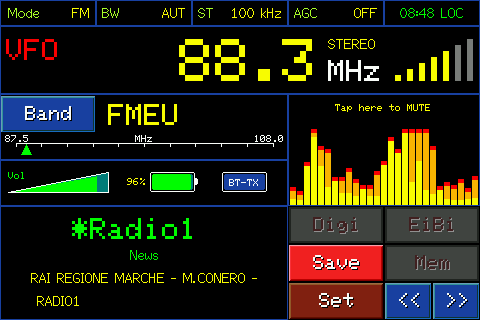
Main page on FM band
Save a station
While in VFO, press  to save the station you are listening to in a new memory: a page opens with a full keyboard and a name already proposed.
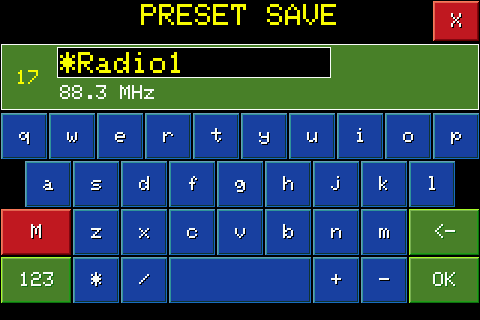
The proposed name depends on the band: in FM it is the RDS name of the station if available, otherwise "FM" followed by the frequency; on the other bands it is the name of the station recognized by the EiBi database if available, otherwise the name of the band followed by the frequency (e.g. "40m 14001"). You can edit it freely with the keyboard, up to 15 characters.
The radio also displays the memory number it will use: it always chooses the first free slot in the current band. Press OK to confirm saving.
Each band can contain up to 100 memories; if they are all occupied, a "MEMORY FULL" warning appears and saving is not possible until you free up at least one slot.
Recall memories
After saving at least one memory in that band, the  button appears: press it to switch from free tuning (VFO) to memory mode, tuning to the last memory listened to in that band.
The display shows the memory number and name in place of the VFO indication.
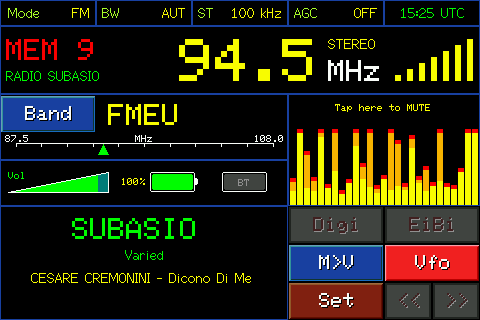
In MEM mode, turning the dial takes you directly from one occupied memory to the next or previous (empty slots are automatically skipped), immediately retuning the radio with each click — useful for quickly scrolling through saved stations.
Press  to return to free tuning, restarting from the last VFO frequency listened to.
M>V button
In MEM mode, the Save button becomes  button: copies the frequency and mode of the memory you are listening to inside the VFO, so you can continue free exploration from that point, or modify them and save them as a new memory with Save.
The complete list of memories
In MEM mode, touching the frequency area opens the complete list of memories of the current band, with number, name and frequency of each; on HF, AIR and VHF mode and bandwidth are also shown.
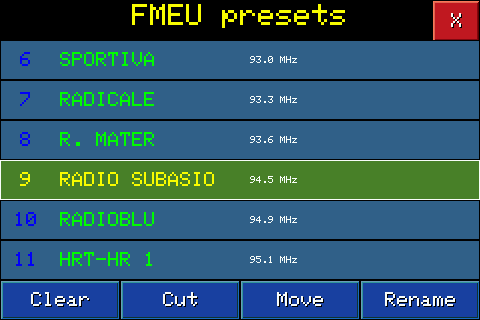
Scroll through the list by turning the knob or touching a line; press the knob to confirm the highlighted memory and return to the main page tuned to that.
Organize memories
At the bottom of the list of memories you will find four buttons to reorganize them.

Rename the highlighted memory: opens the same keyboard seen for saving, with the current name already written, ready to edit.

Deletes the highlighted memory, after a confirmation request (press the knob to confirm). The slot remains empty and available for a new save; the other memories do not change position.

Removes the highlighted memory and immediately closes the free space: all subsequent memories move forward by one slot to compact the list. Unlike Clear, after a Cut there are no holes left in the numbering.

Reorder memories without erasing them. Rotate the knob to highlight the one you want to move, press the knob to "collect" it (the line turns red), then rotate it again to scroll it up or down: with each click it swaps places with the adjacent memory. Press the knob again to "release" it to the new position.