 WhatsApp
 Facebook
 YouTube
WiFi settings
By pressing  on the Settings page you access the Saved Networks page, from which you manage the radio's WiFi connection.
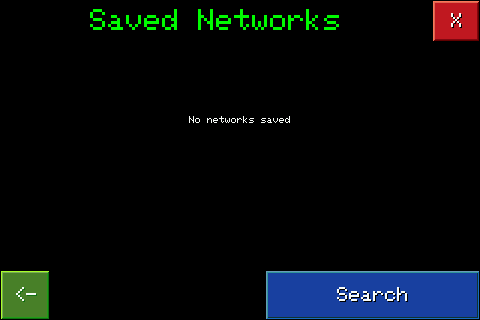
The first time you open it, the page is empty: there are no saved networks yet, and the only available button is Search.
By pressing Search the radio searches for available WiFi networks in the surrounding area. At the end of the search, a list of the networks found appears, with the name (SSID), the signal strength (RSSI) and whether the network is password protected.
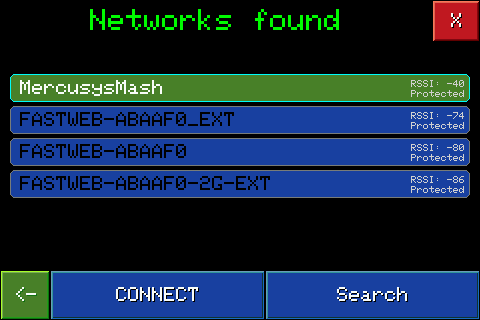
Select a network from the list and press CONNECT. If the network is protected, the page to enter the password opens.
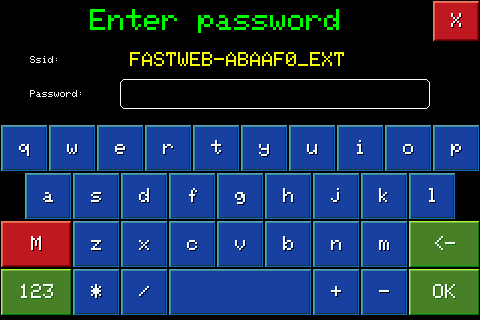
Type the password with the on-screen keyboard and press OK to confirm and start the connection.
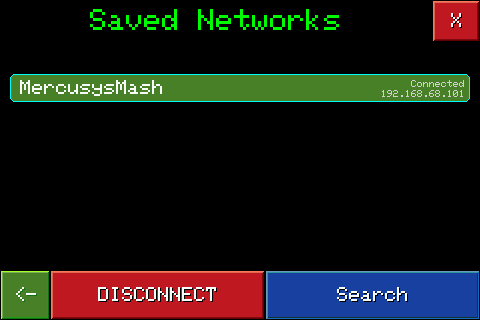
Once connected, the radio remembers the network: returning to this page you will find it in the list of saved networks, with the Connected status and the assigned IP address; from here you can also log out or search for other networks. With the active connection the radio can synchronize date and time, which you see in the status bar of the main page and in other pages, such as Time Zone and QTH, where it also enables the FIND ME button for automatic setting.