 WhatsApp
 Facebook
 YouTube
Time Zones
Pressing  on the Settings page takes you to the Time Zone page, to set the time zone used for local time (LOC).
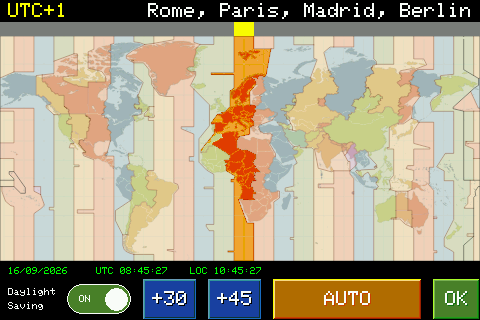
The map shows all the world's time zones, each with a different color; in the example shown, the selected one is highlighted in red, with the deviation from UTC (e.g. UTC+1) and some reference cities shown at the top. A yellow bar above the map indicates the location of the chosen time zone.
To select a time zone, you can directly touch the point on the map that interests you, or rotate the knob to scroll through the time zones one at a time.
The +30 and +45 buttons add half an hour or three quarters of an hour to the selected time zone, for areas that do not follow an exact time (e.g. India, Nepal); they are mutually exclusive, and tapping the one already active deactivates it.
The Daylight Saving switch turns daylight saving time on or off for your chosen time zone.
The AUTO button attempts to automatically detect time zone and daylight saving time via the WiFi connection (only available if the radio is connected): it shows Searching... during the search, then the result or an error if it fails.
The date, UTC time and local time (LOC) are shown at the bottom, updated in real time based on the chosen zone and daylight saving time.
OK confirms and saves the set time zone, returning to the Settings page.