NAVTEX
NAVTEX is the international service that coast stations use to send ships navigational warnings, weather bulletins and distress news, always as text. The NAVTEX decoder page opens from the Digital Modes menu and shows the received messages on the screen. NAVTEX uses two tones 170 Hz apart, at 100 baud, and sends every character twice: if one copy arrives damaged, the radio uses the other.
The main frequencies are 518 kHz (international messages in English) and 490 kHz (national language), plus 424 kHz in Japan and some shortwave frequencies.
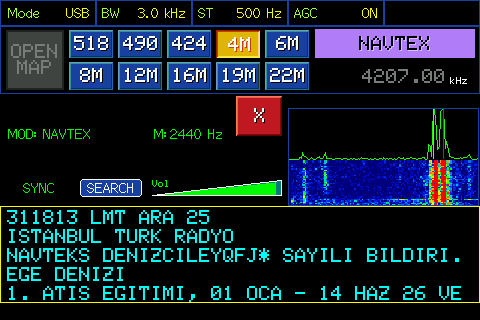
NAVTEX decoder page
Below is a description of the items visible on the page.
Header
At the top are the same five boxes as on the main page: Mode, BW, ST, AGC and the clock. In the example the radio is in USB, with a 3.0 kHz bandwidth and a 500 Hz step.
Presets
Below the header are ten buttons with the NAVTEX frequencies: 518, 490 and 424 (kHz), and 4M, 6M, 8M, 12M, 16M, 19M and 22M for shortwave. The active preset is yellow; in the example it is 4M. On the left the OPEN MAP button is grey: there is no map in NAVTEX.
Decoder name and frequency
To the right of the presets is the violet NAVTEX box and, below it, the frequency the radio is tuned to. It is the radio's real frequency: to receive NAVTEX in USB the radio tunes 2 kHz below the station (2.5 kHz for frequencies ending in .5), so the two tones fall around 2000 Hz of the audio. In the example the 4M preset takes the radio to 4207.00 kHz to receive the station on 4209.5 kHz.
X button
The red X closes the decoder and returns to the Digital Modes menu.
MOD and M
MOD shows the transmission type, always NAVTEX. M is the frequency of the lower tone, in Hz; the other tone is 170 Hz higher. In the example M is at 2440 Hz.
SYNC
SYNC is an indicator, not a button: the label is bright green when the decoder has locked onto a NAVTEX signal, dark green when there is no lock.
SEARCH
SEARCH is the button that finds a NAVTEX signal in the received audio by itself. It is blue when idle and orange while searching; if it finds nothing it turns red with NO SIG for a couple of seconds, then goes back to blue.
Volume
To the right of SEARCH is the volume control, labelled Vol.
Spectrum and Waterfall
On the right is the spectrum of the received audio, with the waterfall below. Above the spectrum two vertical lines, M and S, show where the decoder looks for the two tones. A NAVTEX signal appears as a strip about 300 Hz wide: for the text to be decoded, the M and S lines must fall on its two edges.
Received text
At the bottom is the text area, with five visible lines. Lines starting with ZCZC and NNNN, the start and end of a message, are yellow; all the others are light blue. An asterisk (*) in place of a letter means a character that arrived damaged in both copies.
Choose a frequency
When you enter the NAVTEX page the radio stays on the frequency it had (VFO or memory), in USB: if it is exactly one of the presets, that preset lights up. Tap a preset to go to that frequency: the radio tunes and puts the tones in the right place.
Tune the tones
Tap the spectrum once: the box turns yellow and M turns yellow, but the tones do not move. From then on you can move them in two ways: by turning the knob, in 5 Hz steps, or by tapping the spectrum again: the centre of the two tones goes to the point you tapped and follows your finger as long as you keep it down. Tapping anywhere outside the spectrum, or pressing the knob, turns the box blue again and the tones stay where they are.
Search for a signal (SEARCH)
Tap SEARCH: it turns orange and the radio looks for a NAVTEX signal in the audio, without changing frequency, starting from where the M and S lines are and moving to the nearest one. Every signal found is tried by the decoder: if SYNC lights up within 8 seconds, it is the right one; the radio beeps and the button turns blue again. Otherwise it tries the next signal; if there are none left, the button turns red with NO SIG.
Tapping SEARCH again right after a signal has been found makes the radio look for the next one. While it is searching, tapping the spectrum restarts the search from that point; tapping SEARCH or turning the knob stops it.
Read a message
Every transmission starts with a phasing signal lasting at least 10 seconds: the decoder locks and SYNC lights up, but no text appears yet. This is normal: the text arrives when the real message begins, and in the first seconds the radio may hold it back while it decides how to read it, then shows it all at once.
A message begins with ZCZC followed by four characters: the station letter, the message type letter and a two-digit number. The message ends with NNNN. The most common types are:
- A — navigational warnings.
- B — meteorological warnings.
- D — search and rescue.
- E — weather forecasts.
- L — additional navigational warnings.
Scroll the text
Tap the text area: the box turns yellow. Turning the knob scrolls back through the text already received (the radio keeps 60 lines). To go back to the incoming text press the knob, or tap anywhere outside the text area: the box turns blue again and the text resumes from the last line.
Change frequency
Turning the knob changes the frequency, in steps equal to the ST value if you are in VFO, or moving from one memory to the next if you are in MEM. Tapping the frequency digits opens the numeric keypad in VFO to type the frequency directly; in MEM it opens the memory list to choose one.
Adjust the volume
Tap the volume control: the volume goes to the point you tapped and follows your finger as long as you keep it down. If you tap without dragging, the control turns yellow and you can adjust it with the knob; it turns green again by itself after 3 seconds without changes. After a drag it turns green straight away.